Layers Contextual Panel
The Contextual Details Panel enables you to explore the details of any layer selected in the Explore module. View layer metadata and detections information. Run AI models and view model run history. In addition, you can also do the following in the contextual panel:
-
Copy detections on a successful model run and create annotation layer with the detections.
-
Insert security, military, or defence related symbols in a tactical layer
When you click a layer in the Layers panel, the Contextual Details Panel automatically slides out and presents the relevant information about that layer. Information within the panel is displayed in tabs. Depending on the selected layer, tabs displayed in the panel vary. The specific information available in each tab depends on the selected layer type.
For example, if a raster layer is selected, then the contextual panel displays the Property tab and the Detections tab.
Some of the common tab types include:
- Metadata tab: Displays the metadata of the layer.
- Properties tab: Displays technical specifications, visualization controls, and relationship data
- Detections tab: Provides AI-powered analysis capabilities (where applicable)
- Drawings tab: Displays the drawings (polygon, assisted rectangles, symbols, and so on)
See the chapter Working with Contextual Details panel in the Explore module documentation for more information.
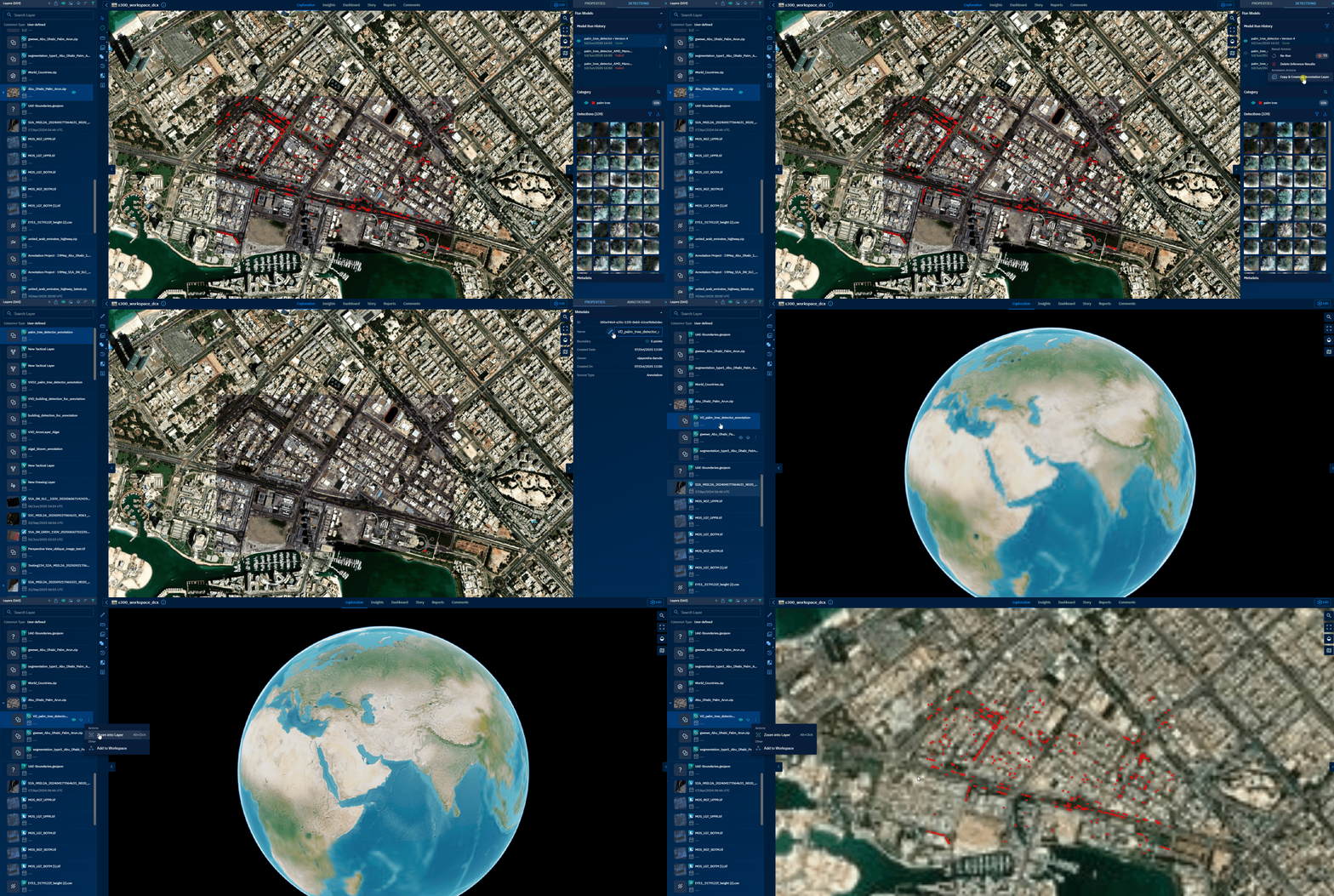
Copy and Create As Annotation Layer
Use this feature to create a layer with annotations from the detections of a successful AI model run.
To copy and create as annotation layer, do the following:
- Open a workspace and then open a layer that displays detections in the Detections tab of the Contextual Panel.
- Click the More Options menu button of the layer and then select Copy and Create as Annotation Layer option.
The platform instantly attaches the new annotation layer to the vector layer with all the detections.
- Rename the annotation layer and turn on the visbility to see the annotations.
Insert Symbols in a Tactical Layer
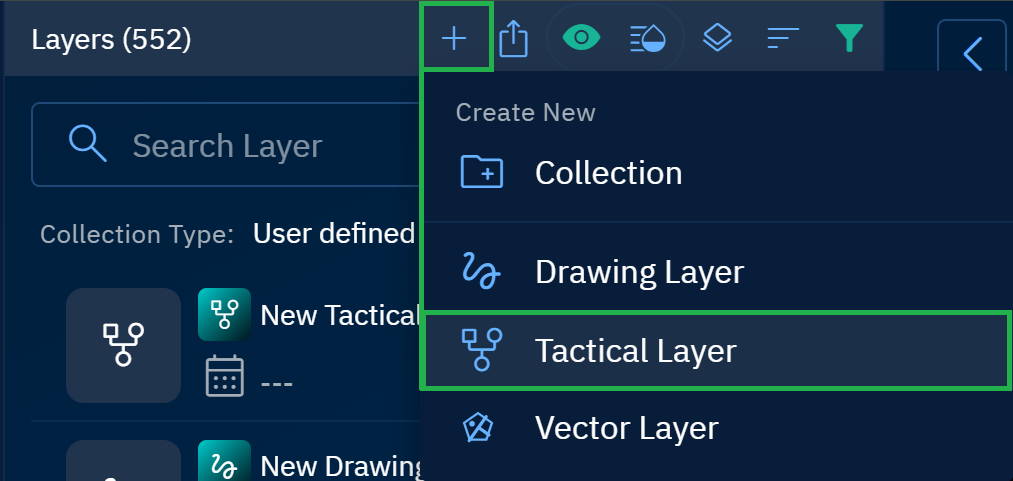
To add symbols in a tactical layer, do the following:
- In a workspace page, click the Export icon on the Layers Tools Menu.
The Export Layers dialog box is displayed.
-
In the Export Layers dialog box, click the Tactical Layer option
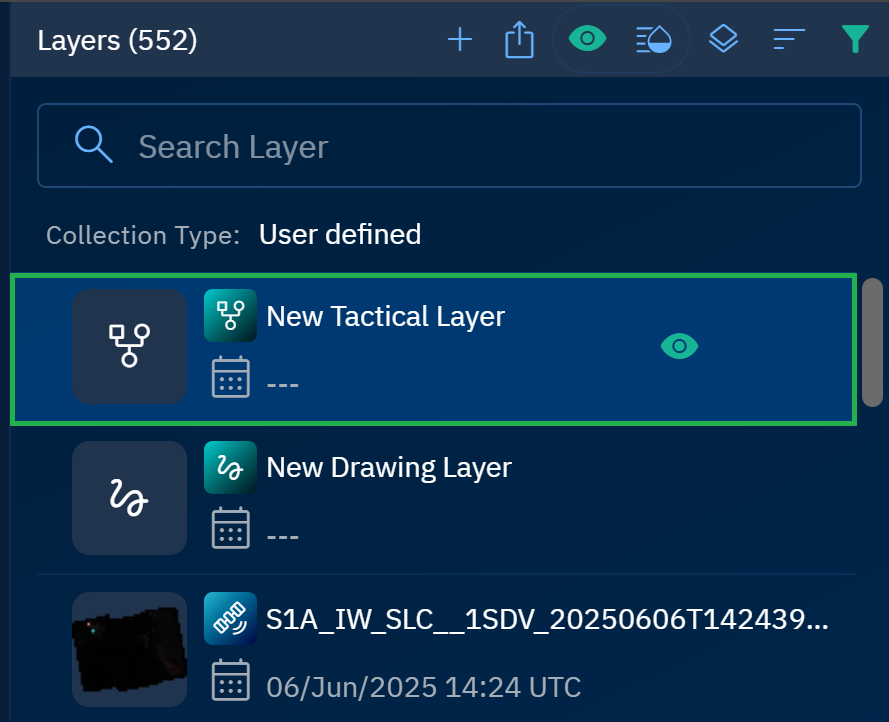
A new drawing layer is added into the Layers panel.
When you create a new drawing layer, a set of tools are activated namely:
| Tools | Tool Names |
|---|---|
 |
|
- Select the layer, click the ◀️ arrow to open the Contextual Panel of the layer, and then do the following:
- Click the Formations, insert the fomations symbols on the layer as per your requirements.
- Click the Sector Boundaries, insert the sector boundaries symbols on the layer as per your requirements.
- Click the Lines of Coordination, insert the lins of coordination symbols on the layer as per your requirements.
